Canva & Etsy
How to Create and Sell Canva Templates on Etsy: Step-by-Step Tutorial
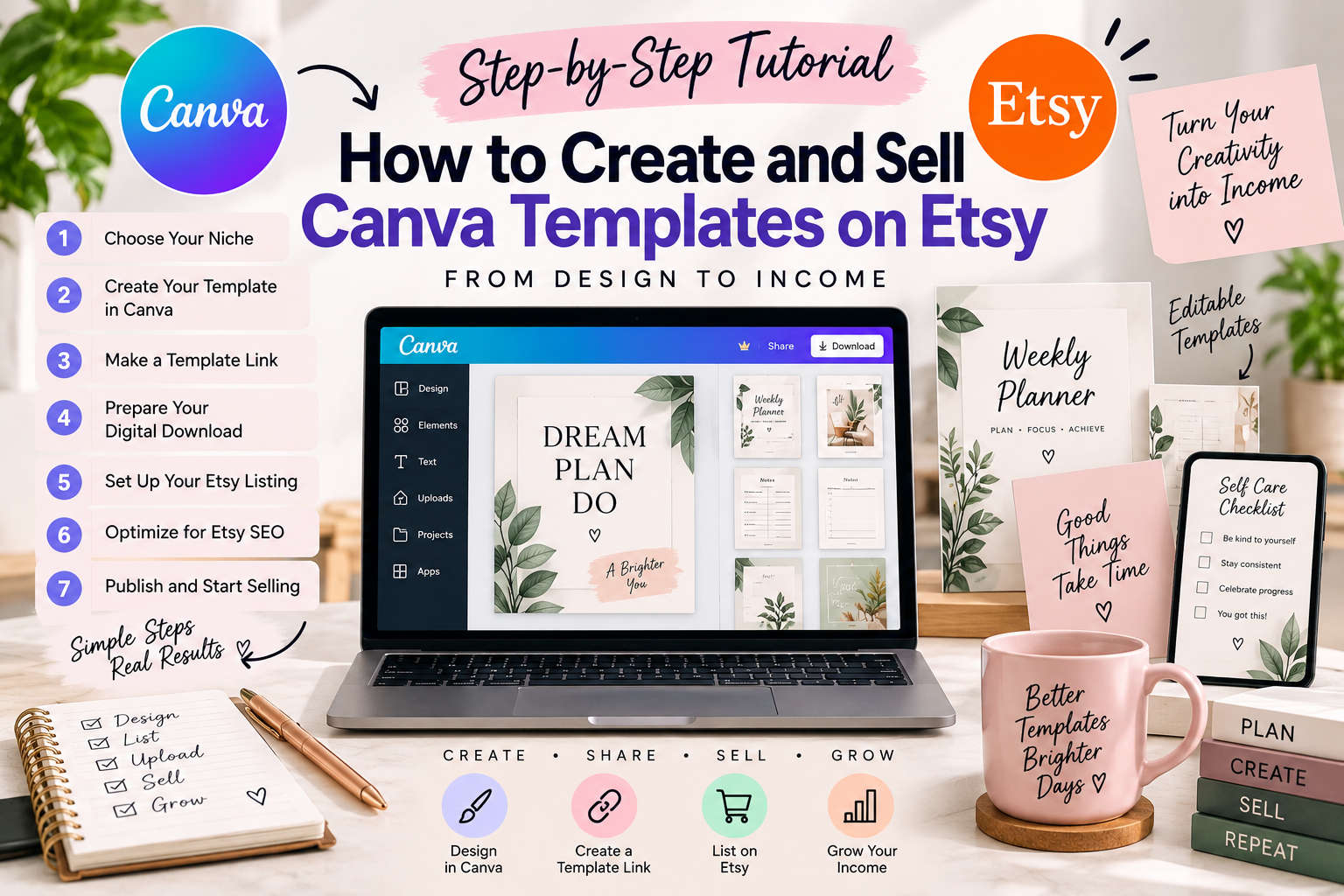
Learn how to create and sell Canva templates on Etsy from start to finish. This beginner-friendly tutorial covers template creation, Canva links, PDF delivery, Etsy listings, SEO, images, and publishing.
How to Create and Sell Canva Templates on Etsy: Step-by-Step Tutorial
Want to learn how to create and sell Canva templates on Etsy? This step-by-step tutorial walks you through the complete process, from choosing a template idea and designing it in Canva to creating your template link, preparing the delivery file, creating your Etsy listing, and publishing your digital product.
If you want to understand the bigger picture first, read our guide on how to sell Canva templates on Etsy.
If you're new to this business model, don't worry. You don't need to build a huge product collection before getting started. The goal is to create one useful, well-organized template and learn the complete process.
What You Need Before Starting
- A Canva account
- An Etsy seller account
- A template idea
- Basic knowledge of Canva
- Product images or mockups
- A PDF delivery file
Before selling a Canva template, review the current Canva Content License Agreement and Etsy's rules for digital items.
Step 1: Choose a Canva Template Idea
Don't start designing before deciding exactly what you're creating.
Choose:
- Product: What are you selling?
- Customer: Who will use it?
- Problem: What does the template help them do?
For example:
- Instagram templates for real estate agents
- Resume templates for job seekers
- Price list templates for beauty businesses
- Media kit templates for creators
- Budget planner templates for personal finance
Step 2: Research Your Idea on Etsy
Go to Etsy and search for your product idea.
Look at:
- Search suggestions
- Existing product types
- Number of designs included
- Product presentation
- Customer reviews
- Questions customers ask
If you need more ideas before choosing your product, check out our guide to digital products to sell online.
Use this research to understand the market, not to copy another seller's product.
Step 3: Create Your Template in Canva
Open Canva and create a new design with the correct dimensions for your product.
Keep the design clean and easy to customize.
Design Tips
- Use consistent fonts.
- Keep spacing consistent.
- Use a clear visual hierarchy.
- Make editable elements obvious.
- Avoid overcrowding the design.
- Use high-quality graphics.
- Check every page before publishing.
Step 4: Make Your Template Easy to Edit
Remember that your customer will use the template themselves.
Before publishing, test common edits such as:
- Changing text
- Replacing images
- Changing colors
- Moving elements
- Adding or removing information
If a beginner cannot understand how to customize your template, improve the layout or add clearer instructions.
Step 5: Check Canva Licensing
This is an important step before selling your product.
Check the source and licensing status of Canva elements used in your design. Canva's current Content License Agreement distinguishes between Free Content, Pro Content, Branded Content and other categories, and the permitted uses can differ.
Do not assume that every Canva element can be redistributed or resold as a standalone asset. Your template should be created and sold in a way that complies with the current Canva license.
Review Canva's current Content License Agreement →
Step 6: Create Your Canva Template Link
After your design is complete, create the appropriate Canva template-sharing link for customers.
The purpose of the template link is to allow the buyer to access a customizable version of the design rather than giving the customer your original working file.
Before publishing your Etsy listing, test the link using a separate Canva account or an appropriate test workflow.
Step 7: Create the PDF Delivery File
Create a simple PDF that customers receive after purchasing.
Your PDF can include:
- Thank-you message
- Short instructions
- Access Your Canva Template button
- Clickable Canva template link
- Editing instructions
- Basic troubleshooting
- Contact information
Keep the delivery PDF simple. The customer should immediately understand what to click.
Step 8: Create Your Etsy Product Images
Create several product images that show exactly what the customer receives.
Your images can show:
- Main product preview
- Multiple template pages
- Template features
- Example customization
- Number of templates included
- Important product information
A good product image should help a shopper understand the product without opening the description.
Step 9: Write Your Etsy Listing Title
Use a title that clearly describes the product instead of filling it with unrelated keywords.
For example:
Real Estate Instagram Canva Templates, Editable Social Media Posts for Realtors
The exact wording should match the actual product you are selling.
Etsy's current search guidance says that listing titles, tags, attributes, descriptions, photos and other listing information can contribute to search matching. Etsy has also published updated guidance on making titles buyer-friendly and search-ready.
Step 10: Add Etsy Tags
Etsy currently provides 13 tags for a listing. Use relevant multi-word phrases that describe your product, audience and use case.
For a hypothetical real estate Instagram template, relevant phrases might include:
- real estate template
- realtor instagram
- canva social media
- instagram canva
- editable social post
- real estate marketing
Do not use unrelated popular keywords just to attract traffic.
Step 11: Choose the Correct Category and Attributes
Select the most specific Etsy category available for your product and complete the relevant attributes.
Accurate categories and attributes help Etsy understand what your product is and which shoppers may be interested in it.
Step 12: Upload Your Digital Product
Prepare the digital delivery file and upload it to your Etsy digital listing.
Before publishing, download the file yourself and confirm that:
- The PDF opens correctly.
- The Canva link works.
- The instructions are understandable.
- The product matches the listing.
Step 13: Write the Product Description
Start by clearly explaining what the product is.
Then answer the questions a buyer is most likely to have:
- What is included?
- How many templates are included?
- What can be edited?
- How does the buyer access the template?
- Is Canva required?
- Is this a digital product?
- Will anything be shipped?
Step 14: Publish and Test the Buyer Experience
After publishing your listing, don't stop at the listing page.
Go through the complete customer journey:
- Find the listing.
- Open the product images.
- Read the description.
- Download the delivery file.
- Click the Canva link.
- Open the template.
- Edit a few elements.
This test can reveal problems that are easy to miss while you're creating the product.
Step 15: Improve Your Etsy Listing Over Time
Your first listing does not have to be perfect.
Use your Etsy shop data to understand what shoppers respond to and improve your product presentation, keywords, images and descriptions over time.
Etsy's own guidance recommends reviewing shop statistics and refreshing tags on listings that receive less traffic.
Canva Templates on Etsy: Quick Launch Checklist
- ☐ Choose a specific customer and product
- ☐ Research Etsy search results
- ☐ Create the Canva template
- ☐ Test every editable element
- ☐ Review Canva licensing
- ☐ Create the template link
- ☐ Create the PDF delivery file
- ☐ Test the delivery link
- ☐ Create high-quality product images
- ☐ Write a clear Etsy title
- ☐ Add 13 relevant Etsy tags
- ☐ Select the correct category and attributes
- ☐ Write a complete product description
- ☐ Test the complete buyer experience
- ☐ Publish the listing
What's Next?
Once your first Canva template is published, use what you learn to create related products for the same audience. Building a focused collection can make it easier to organize your shop and create complementary products.
For more ideas, read our guide on how to sell Canva templates on Etsy and explore our other digital product tutorials.
Related Reading
- How to Sell Canva Templates on Etsy — the blog guide version, with pricing and listing tips.
- How to Create a Canva Template, Step by Step — the design basics behind every template.
- How to Price Digital Products — price your templates for profit.