Etsy & Canva
How to Create & Sell Digital Products on Etsy Using Canva
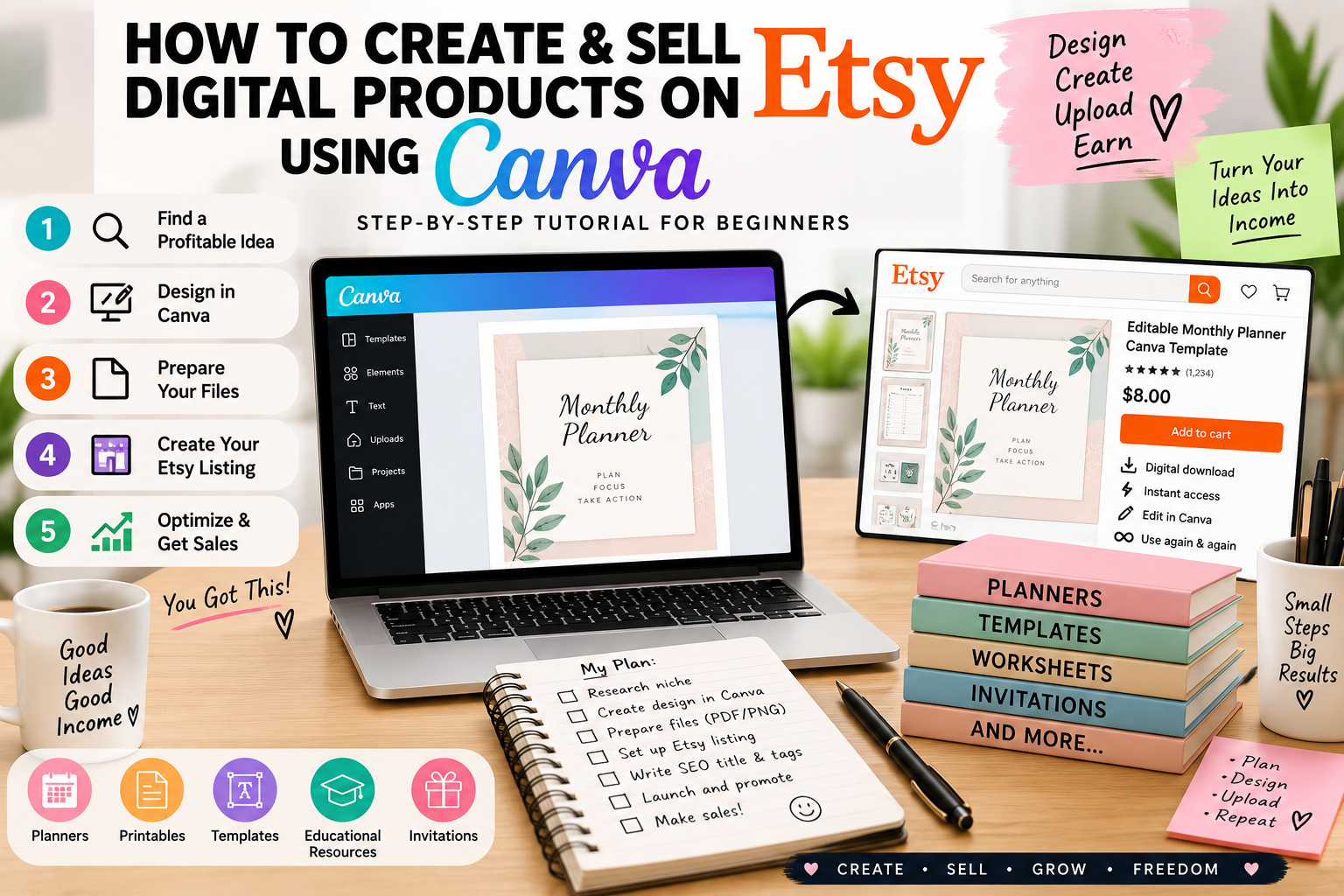
Learn how to create digital products with Canva and sell them on Etsy. This beginner-friendly tutorial covers product research, Canva design, file preparation, Etsy listings, pricing, SEO, mockups, publishing, and promotion.
Canva makes it possible to create many types of digital products without needing advanced graphic design skills. Combined with Etsy's marketplace, it can provide a practical way for beginners to turn useful designs into downloadable products.
In this tutorial, you'll learn how to create and sell digital products on Etsy using Canva, from choosing the right product idea to designing it, preparing the files, creating your Etsy listing, optimizing it for search, and promoting your product.
Before getting started, it helps to understand exactly what qualifies as a digital product. Read our guide: What Is a Digital Product? Types, Examples & How Digital Products Work .
What You Will Learn
- How to choose a digital product idea
- How to research Etsy demand
- How to create the product in Canva
- How to prepare files for customers
- How to create an Etsy digital listing
- How to write an SEO-friendly title
- How to create effective product images
- How to choose a competitive price
- How to optimize your Etsy listing
- How to promote your digital product
- How to avoid common Canva licensing mistakes
Step 1: Choose What Digital Product You Want to Sell
Don't open Canva and start designing immediately.
The first step is deciding what product you want to create and who it is for.
Some popular digital product categories include:
- Canva templates
- Printable planners
- Budget planners
- Business templates
- Resume templates
- Social media templates
- Wedding templates
- Party invitations
- Worksheets
- Checklists
- Calendars
- Educational resources
- Digital journals
- Workbooks
For more ideas, read: 10 Best Digital Products to Sell .
You can also browse our free digital resources to see examples of different digital product formats.
Step 2: Choose a Specific Target Customer
One of the easiest ways to make a digital product more useful is to create it for a specific audience.
Instead of creating a generic planner, for example, consider creating:
- Student weekly planner
- Freelancer project planner
- Small business content planner
- Wedding planning workbook
- Teacher lesson planner
- Family budget planner
A specific audience makes it easier to decide what features, wording, design style, and keywords your product should use.
Step 3: Research Etsy Before Designing
This is one of the most important steps.
Don't spend hours creating a product before checking whether people are actually searching for that type of product.
Search Etsy for your product idea and examine:
- Search terms
- Competing products
- Prices
- Reviews
- Product formats
- Thumbnail styles
- Bundles
- Customer needs
For a more detailed research process, follow our tutorial: How to Find Best-Selling Digital Products on Etsy: Trends & Research Tools .
You can also read: How to Find Best-Selling Digital Products on Etsy: Trends & Research Tools .
Step 4: Find a Long-Tail Keyword
Don't rely only on extremely broad keywords such as planner or Canva template.
Try to identify more specific phrases.
| Broad Keyword | More Specific Keyword |
|---|---|
| planner | weekly planner for students |
| budget planner | monthly budget planner printable |
| resume template | minimalist Canva resume template |
| business template | small business social media template |
| invitation | editable birthday invitation Canva |
A specific keyword can help you understand exactly what type of product the customer is looking for.
Step 5: Open Canva and Start With a Blank Design
Once you've validated the product idea, open Canva and create a new design with the correct dimensions.
Your dimensions depend on the product.
| Product | Possible Size |
|---|---|
| Printable worksheet | A4 or US Letter |
| Invitation | 5 × 7 inches |
| Instagram post template | 1080 × 1350 px |
| Story template | 1080 × 1920 px |
| Digital planner page | Choose dimensions based on intended device |
Always decide the final use of your product before selecting the document size.
Step 6: Create Your Design From Scratch
Your product should be an original design rather than simply taking an existing Canva template and reselling it.
Canva's current guidance says that products intended for sale need to be original designs. Simply changing colors, resizing, cropping, or applying minimal modifications to existing Canva content does not make the content an original standalone product. :contentReference[oaicite:1]{index=1}
Build your design by making your own decisions about:
- Layout
- Typography
- Color palette
- Sections
- Spacing
- Hierarchy
- Instructions
- Customer experience
Step 7: Pay Attention to Canva Licensing
This is extremely important when creating products for commercial sale.
Canva allows many commercial uses of its content, but its licensing rules differ depending on whether the content is Free, Pro, Branded, Education, or another content category.
You should never treat Canva's individual photos, graphics, illustrations, or other library assets as standalone content that you can simply resell.
Canva's current Content License Agreement states that Pro Content is licensed for use within a Canva Design and cannot be copied, downloaded, or distributed as standalone content. :contentReference[oaicite:2]{index=2}
Important Rule for Canva Templates
If you're creating a Canva template for sale and your design contains Canva Pro Content, Canva's current guidance says the template should be sold as a Canva template link that brings the customer back to Canva.
Canva also states that templates must be original designs and that Pro Content cannot simply be distributed as an off-platform downloadable template file. :contentReference[oaicite:3]{index=3}
Always check Canva's latest Content License Agreement before publishing commercial products because licensing terms can change.
Step 8: Learn How to Create a Canva Template
If your product is specifically a Canva template, follow our dedicated tutorial:
How to Create a Canva Template: Step-by-Step
That tutorial can be used alongside this guide when you're building the actual editable template.
Step 9: Make the Product Easy to Use
A digital product should not only look attractive. It should be easy for the buyer to understand and use.
Before exporting your product, check:
- Are the instructions clear?
- Are fonts readable?
- Are colors easy to see?
- Are all editable fields obvious?
- Are page sizes correct?
- Are links working?
- Are there spelling mistakes?
- Does the design work on the intended device?
Step 10: Export the Correct Files
Your file format depends on what you're selling.
For example:
- Printable: PDF
- Graphics: PNG or JPG
- Editable Canva template: PDF instruction file containing the appropriate Canva template link
- Bundle: ZIP containing the permitted files
For Etsy digital listings, Etsy currently supports instant-download and made-to-order digital products. For instant downloads, sellers upload the files customers will receive after purchase. Etsy currently allows up to five digital files per instant listing, with a maximum size of 20 MB per file. :contentReference[oaicite:4]{index=4}
Step 11: Create an Etsy Digital Listing
When creating your Etsy listing, select the appropriate digital product option.
Etsy's current guidance says digital items listed in your store must be made and/or designed by you, the seller. :contentReference[oaicite:5]{index=5}
Prepare the following before publishing:
- Product title
- Description
- Images
- Digital files
- Tags
- Category
- Price
- Personalization information if applicable
Step 12: Write an SEO-Friendly Etsy Title
Your title should clearly explain what the product is and naturally include relevant search phrases.
For example:
Minimalist Budget Planner Printable | Monthly Budget Tracker | Expense Planner | Savings Tracker PDF
Avoid filling the title with unrelated keywords. Every phrase should accurately describe the product.
Step 13: Create Professional Product Images
Your thumbnail is one of the first things a shopper sees.
Create several images that clearly communicate:
- What the product looks like
- What is included
- How it works
- Available formats
- Important features
- Example pages
- How customers receive the product
Don't make the thumbnail so complicated that the customer cannot understand the product at a glance.
Step 14: Write a Helpful Product Description
Your description should answer the questions a buyer is likely to have before purchasing.
Include:
- What the product is
- Who it is for
- What's included
- Available file formats
- How to use it
- Editing instructions
- Important limitations
- Digital-download disclaimer
Make the description easy to scan using headings, short paragraphs and bullet points.
Step 15: Choose a Price
Pricing should reflect the value and complexity of your product rather than simply being the lowest price in the marketplace.
Consider:
- Number of pages
- Number of templates
- File formats
- Customization options
- Target audience
- Competitor pricing
- Time required to create the product
- Whether you're selling a single product or a bundle
Step 16: Publish and Test Your Listing
Before publishing, check the entire customer journey.
- Open the product images.
- Read the title.
- Read the description.
- Check the price.
- Check the digital files.
- Test all included links.
- Check spelling and formatting.
- Make sure the customer understands what they are buying.
A few minutes of testing can prevent unnecessary customer questions and delivery problems.
Step 17: Promote Your Etsy Product
Publishing the product is only the beginning.
You can promote your digital products through:
- Blog articles
- Social media
- Email marketing
- YouTube
- Short-form videos
- Free resources
- Search engine traffic
This is also where having your own website can become useful. Instead of depending entirely on marketplace traffic, you can build content around the problems your products solve.
You can explore our DigiDown Blog for more content ideas and digital-product guides.
Can You Also Sell Digital Products Through Gumroad?
Yes. Etsy does not have to be your only sales channel.
Gumroad can be useful when you want to sell directly through links from your website, social media, Pinterest, YouTube, or an existing audience.
You can explore another creator's digital products and product presentation at Gumroad .
For a broader comparison of the two platforms, read: Etsy vs Gumroad: Best-Selling Digital Products & Trends in 2027 .
Step 18: Create a Simple Product Funnel
Instead of trying to sell immediately to every visitor, you can build a simple content funnel.
A basic funnel could look like:
Helpful article → Free resource → Product tutorial → Paid digital product
For example, you could publish a useful article about budgeting, offer a free budget tracker, explain how to use it, and then offer a more advanced paid budget planner.
Visit our DigiDown home page to explore the complete collection of resources.
Common Mistakes Beginners Should Avoid
1. Reselling Existing Canva Templates
Don't take an existing Canva template and sell it as your own product. Create an original design instead.
2. Selling Canva Elements as Standalone Files
Canva's content cannot simply be extracted and resold as standalone content. Always check the applicable license before using Canva assets in a commercial product. :contentReference[oaicite:6]{index=6}
3. Creating Products Without Research
Don't spend ten hours designing something before checking whether there is a market for it.
4. Using Weak Product Images
A good product can struggle if customers cannot understand what they're buying from the listing images.
5. Targeting Everyone
A product designed for a clearly defined audience can be easier to position than a completely generic product.
6. Ignoring Customer Instructions
Digital products should include clear instructions whenever the buyer needs to edit, download, print or access something.
Canva to Etsy Workflow
Here's the complete process in a simple checklist:
- Choose a product category.
- Identify a specific target customer.
- Research Etsy keywords.
- Study competing products.
- Find a product gap.
- Choose your product format.
- Create the original design in Canva.
- Check Canva licensing requirements.
- Test the product.
- Prepare the final files.
- Create professional listing images.
- Write an optimized Etsy title.
- Write the product description.
- Add relevant tags and category information.
- Choose your price.
- Publish the listing.
- Promote the product.
- Monitor performance and improve the listing.
Useful DigiDown Resources
If you're building a digital-product business, these resources can help you continue learning:
- How to Create a Canva Template: Step-by-Step
- How to Find Best-Selling Digital Products on Etsy
- Best-Selling Digital Products on Etsy: Trends & Research Tools
- Etsy vs Gumroad: Best-Selling Digital Products & Trends in 2027
- 10 Best Digital Products to Sell
Final Thoughts
Creating digital products with Canva and selling them on Etsy can be a practical starting point for a digital-product business, but success does not come from simply uploading a Canva design.
The better approach is to combine product research, original design, useful functionality, strong listing images, relevant keywords, clear descriptions, competitive pricing and consistent promotion .
Start with a real customer problem, research the Etsy marketplace, create an original solution in Canva, prepare the files professionally, and then build a listing that makes the value immediately clear.
If you're ready to continue, explore our tutorials , browse the freebies , or visit the DigiDown Shop for more digital resources.
Related Reading
- How to Create and Sell Digital Products Online — the full step-by-step tutorial, from idea to first sale.
- How to Sell Canva Templates on Etsy — the complete guide to listing and selling your templates.
- Best-Selling Digital Products on Etsy in 2027 — see which products are actually selling before you create yours.