Blog
How to Create Digital Templates to Sell (From Idea to First Listing)
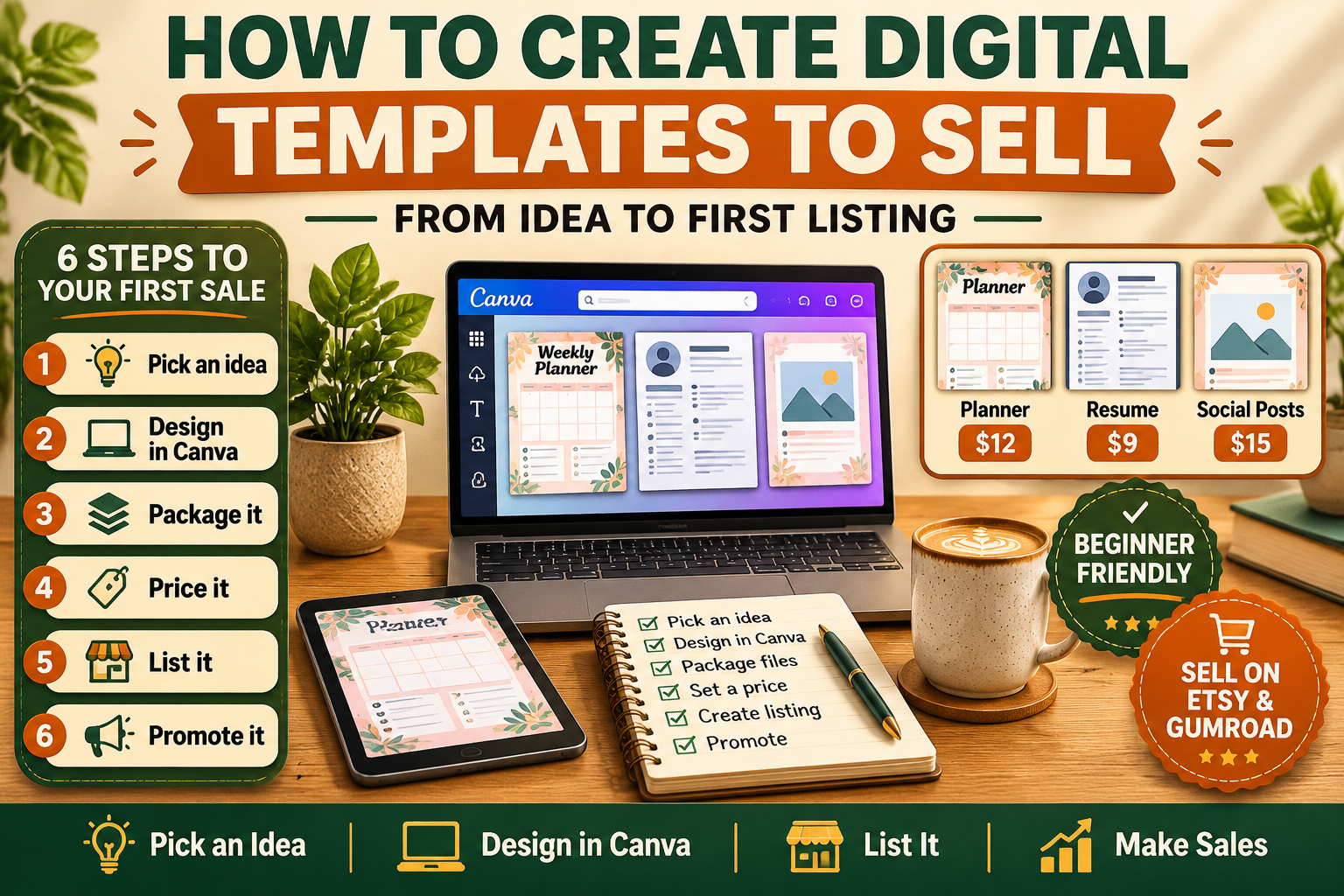
Learn how to create digital templates to sell — pick a profitable idea, design it in Canva, package it, price it, and list it on Etsy or Gumroad. A complete beginner guide from idea to first sale.
Digital templates are one of the easiest products a beginner can sell online. You design something once — a planner page, a resume layout, an Instagram post set, a budget tracker — and you can sell the same file hundreds of times without ever printing, packing, or shipping anything.
But "easy to make" does not mean "easy to sell." Every day, thousands of new templates land on Etsy and Gumroad, and most of them never make a single sale. The difference between a template that sells and one that sits there is rarely design talent. It is the idea, the packaging, and the listing.
This guide walks you through the whole process: choosing a template idea people actually search for, designing it properly in Canva, packaging it so buyers feel they got their money's worth, pricing it, and listing it where buyers already shop.
What Counts as a Digital Template (and What Sells)
A digital template is a ready-made, editable design file that a buyer customises for their own use. The buyer is not paying for a finished poster — they are paying to skip the blank page.
Templates that sell well share three traits: they solve a specific job, they are for a specific buyer, and they save real time. A generic "planner template" competes with ten thousand similar listings. A "weekly meal planner for busy mums" or a "wedding budget tracker for couples" speaks to one person with one problem.
Here are the template types beginners sell most often, with realistic price ranges:
| Template type | Typical price | Who buys it |
|---|---|---|
| Digital planners & journals | $5–$25 | Productivity and journaling fans |
| Resume & CV templates | $5–$18 | Job seekers |
| Social media post templates | $8–$30 | Small business owners, creators |
| Budget & finance spreadsheets | $5–$20 | People organising their money |
| Business templates (invoice, price list, client forms) | $6–$35 | Freelancers and small shops |
| Educational worksheets | $3–$15 | Teachers and homeschool parents |
| Wedding & event templates | $8–$40 | Couples and party planners |
Notice the pattern: every row names a buyer, not just a product. Start with the buyer and the template almost designs itself.
Step 1: Pick a Profitable Template Idea
Do not start in Canva. Start with demand. A beautiful template nobody searches for is a hobby; a plain template people already want is a product.
Look at what is already selling. Search Etsy for the template type you have in mind and sort by bestsellers. Read the reviews: buyers tell you exactly what they loved ("the hyperlinks work perfectly") and what was missing ("I wish it had a monthly view"). That missing feature is your opening.
Check the search demand. Type your idea into Etsy's search bar and watch the autocomplete suggestions — those are real searches from real buyers. If "budget planner" autocompletes to "budget planner printable pdf" and "budget planner for couples," those are live keywords you can build a listing around.
Narrow it to one buyer. "A planner" is not an idea. "A daily planner for night-shift nurses" is. The narrower the buyer, the less competition you face and the easier your listing title, mockups, and description become — because you know exactly who you are talking to.
Validate before you build. Before spending hours designing, ask three quick questions: Are at least a few sellers already making sales in this niche? (Zero competition usually means zero demand.) Can you make something clearly better or more specific than the top listings? And can you explain in one sentence who it is for and what it does? If any answer is no, pick another idea.
If you need a starting list, our roundup of 15 digital product ideas for teachers & educators is full of template ideas for a buyer group that is always looking for classroom-ready resources.
Step 2: Design It in Canva
Canva is the tool most beginner template sellers use, and for good reason: it is free to start, it has the exact page sizes you need, and — most importantly — you can share a template link so buyers can open and edit their copy without ever touching your original.
Set the right size first. A US Letter planner page is 8.5 × 11 inches; an Instagram post template is 1080 × 1080 px; a resume is usually A4 or US Letter. Choosing the size before you design saves you from rebuilding the whole file later.
Design one complete page before you make twenty. Build your best page first — the daily planner spread, the resume layout, the main social post — and get the fonts, colours, spacing, and style right on that one page. Then duplicate it and vary it. A template with 20 inconsistent pages looks unfinished; one with 10 consistent pages looks professional.
Keep it editable and beginner-proof. Your buyer is probably not a designer. Use no more than two or three fonts, leave generous white space, label sections clearly, and avoid tiny text that disappears when printed. If your template has hyperlinked tabs or buttons, test every link yourself — broken links are the most common complaint in template reviews.
Use a consistent style system. Pick a small palette (two main colours plus one accent) and stick to it across every page. Buyers judge a template in about three seconds from the first mockup image, and consistency is what reads as "professional."
If you have never built a template in Canva before, follow our step-by-step walkthrough, How to Make a Template in Canva (Beginner, Step-by-Step) — it covers setup, page sizes, and sharing your template link. For the full start-to-finish workflow, see How to Create a Digital Product in Canva, Start to Finish.
Step 3: Package It Like a Product
What the buyer downloads matters as much as the template itself. A single lonely PDF in a zip file feels cheap, even if the design is good. A tidy package feels worth the price.
A good template package includes:
- The template itself — a Canva template link (the standard for editable templates) or a PDF, depending on the product.
- A short instruction PDF — one page that tells the buyer how to open the link, make their copy, and edit text and colours. This one page prevents most "how do I use this?" messages.
- A "what's inside" list — every page or file, named clearly, so the buyer knows exactly what they paid for.
- A thank-you note — one line, plus a gentle invitation to leave a review or check out your other templates.
Also add a usage-terms note: personal use is standard; commercial use (reselling or redistributing the template) is not included unless you explicitly offer it. Clear terms prevent disputes later.
Test the whole package yourself before listing it: download the zip, open the link from a fresh browser, and follow your own instructions as if you were the buyer. If anything confuses you, it will confuse them.
Step 4: Price It So It Sells
Beginners usually price too low ("nobody will pay $15 for a planner") or too high ("my 40-page bundle must be worth $49"). Both mistakes cost sales.
Start with the market, not your effort. Look at what comparable templates actually sell for — the table in the first section is a good starting point. A single-page resume template sells for $5–$12; a 20-page planner bundle sells for $12–$25. Price inside the range your buyers already accept, then earn the top of that range with better mockups, more pages, and clearer instructions.
Remember the fees. On Etsy you pay a $0.20 listing fee plus a 6.5% transaction fee and a payment processing fee on every sale; on Gumroad the fee is 10% + $0.50 per sale. A $10 template on Etsy nets you roughly $8.90 after fees — price with that in mind, not with the headline number.
A useful beginner rule: price your first template at the low-middle of its range, get a few sales and reviews, then raise the price. A template with 10 five-star reviews at $12 outsells the same template with zero reviews at $19. For a deeper look at the maths, read our guide How to Price a Digital Product: Fees, Psychology & Examples.
Step 5: List It Where Buyers Already Shop
As a beginner, you do not need your own website on day one. You need to be where buyers are already searching. The two main options are Etsy and Gumroad, and they work differently:
- Etsy brings you built-in buyer traffic — people search there for templates every day — but charges listing and transaction fees and has more rules to follow.
- Gumroad is simpler and lets you sell direct to your own audience, but you bring the traffic yourself; nobody discovers your listing by browsing.
Many sellers start on Etsy for discovery, then add Gumroad (or their own site) later to keep more of each sale. Our comparison, Etsy vs Gumroad vs Stan Store: Where Should a Beginner Sell?, walks through the fees and trade-offs in detail. If you want to skip marketplace fees entirely, read How to Sell Canva Templates Without Etsy Fees (Your Own Site + Gumroad).
Whichever platform you choose, the listing itself needs the same four things: a keyword-rich title (what it is + who it is for), 5–10 mockup images showing the template in use, a description that says what is included and how it works, and the right tags or category so search can find it.
Step 6: Make Your First Listing Convert
Your mockups do most of the selling. A buyer cannot hold your template, so the listing images have to do the job of a shop display.
- Show the template in use — on a tablet, a laptop, or a printed page on a desk — not just a flat screenshot.
- Show every key page in the first few images; buyers scroll fast and decide fast.
- Add a "what's inside" image listing every page, so the value is obvious at a glance.
- Use a lifestyle shot (the template on a desk with a coffee and notebook) as one of your images — it helps buyers picture themselves using it.
Your title should say what the template is and who it is for: "Weekly Meal Planner Template for Busy Families | Printable & Digital | Canva Editable" beats "Planner Template" every time. For title and tag techniques, see How to Write an Etsy Listing Title That Ranks.
Then, once the listing is live, send it to five real people and ask one question: "Would you buy this, and if not, why?" Their answers are worth more than any course.
Common Mistakes That Kill Template Sales
- Copying a bestseller page-for-page. Buyers and Etsy both notice. Take inspiration from the structure, then make it yours.
- Too many pages, too little polish. Ten excellent pages beat forty rushed ones.
- No instructions included. Confused buyers leave one-star reviews and ask for refunds.
- Mockups that show the template badly. Crooked screenshots, unreadable text, or stock photos that do not match the product all cost sales.
- Forgetting the commercial-use question. State your terms clearly in the listing, or you will get the same question in every other message.
- Listing once and waiting. One template rarely sells on its own. Successful shops usually have 10–20 listings before sales become steady — each listing is another chance to be found.
FAQ
Do I need Canva Pro to sell templates?
No. The free version of Canva is enough to design and sell templates. Canva Pro adds brand kits, background remover, and premium elements — useful once you are selling regularly, but not required for your first template. Just avoid using Pro-only elements in a free-account design, or your buyers will hit a paywall when they try to edit.
Can I sell a template I made from a free Canva design?
You can sell your own original design, but you cannot resell Canva's own stock templates or elements as-is. Build the layout yourself, use your own text and structure, and check Canva's licence terms before using any stock photo or graphic commercially.
How many templates do I need before I make a sale?
There is no magic number, but most sellers see their first sale after 5–15 listings, not after one. Each listing is a separate chance to appear in search, so a small range of related templates (for example, three planner variations) works better than a single listing.
Etsy or Gumroad for my first template?
If you have no audience yet, Etsy — its built-in search traffic gives a beginner the best chance of being found. If you already have followers on Instagram, TikTok, or Pinterest, Gumroad lets you sell to them directly with simpler fees. You can use both: Etsy for discovery, Gumroad for your own audience.
What file do buyers actually get?
Usually a PDF with your Canva template link and instructions inside, or a zip containing the PDF and instruction sheet. The buyer clicks the template link, Canva asks them to make a copy, and they edit their own version. They never edit — or see — your original.
Your First Template This Week
You do not need a design degree, a big budget, or a perfect shop to start. You need one specific idea for one specific buyer, a clean design in Canva, a tidy package with instructions, a fair price, and a listing with mockups that show the template properly.
Do it in this order: pick the idea today, design the first page tomorrow, finish the package the day after, and list it by the end of the week. Then make the next one — each template teaches you something the previous one did not, and each listing is another chance for a buyer to find you.
Your first sale will not come from the perfect template. It will come from the finished one.