Digital Products
How to Turn One Template Into a Bundle (Pricing & Packaging)
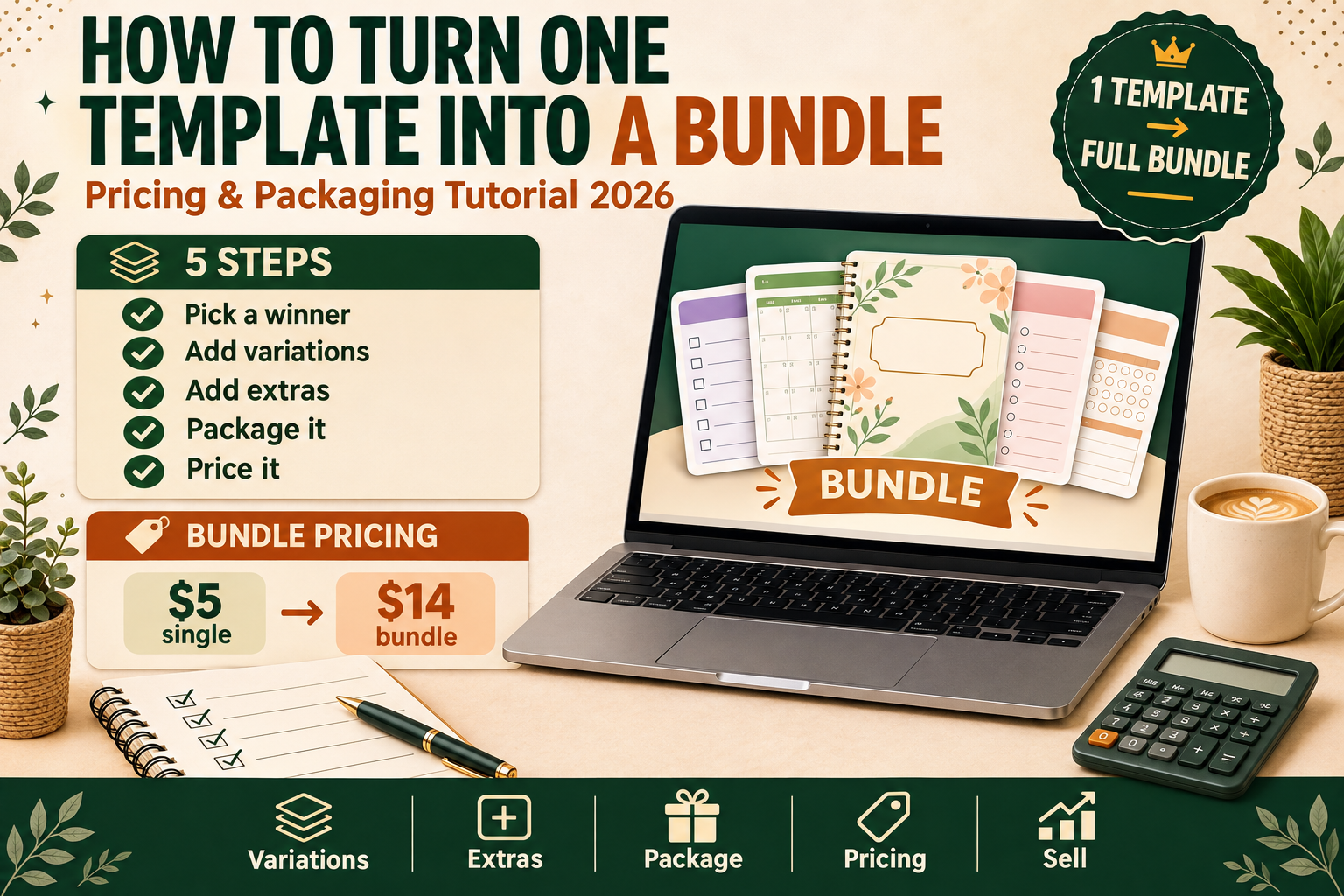
Learn how to turn one template into a bundle that sells for more. Variations, packaging, bundle pricing math, and listing tips for Etsy and Gumroad.
You already did the hard part: you designed a template people want. A single planner page, a resume template, an Instagram post pack — one good file that sells. The fastest way to earn more from that same work is not to design a brand-new product. It is to turn the one template you already have into a bundle.
A bundle takes one core template and grows it into a complete, higher-value product: more variations, more sizes, matching extras, and clear packaging. Customers pay more because they get more, and you earn more per sale without starting from zero.
In this tutorial, you will learn how to pick the right template to bundle, how to create variations buyers actually want, how to package everything professionally, and how to price the bundle so it sells — on Etsy, Gumroad, or your own site.
Why Turn One Template Into a Bundle?
Selling a single template for $5 means you need 20 sales to make $100. Selling a bundle of that same template, expanded, for $19 means you need just over 5 sales to make the same money. Bundles also:
- Raise your average order value — one sale is worth three or four single-template sales.
- Look more valuable in search results — "50-page planner bundle" beats "1-page planner" in a crowded Etsy search.
- Reduce price comparison — buyers compare a $5 template against every other $5 template. A unique bundle is harder to compare, so it competes on value, not price.
- Give you more to show in mockups — more pages and pieces mean richer listing photos, which get more clicks.
- Reuse work you already finished — variations of an existing design take a fraction of the time of a new product.
This is the same logic behind the product ladder: a free sample leads to a single template, which leads to a bundle. If you want the full pricing picture first, read our guide on how to price digital products.
Step 1: Pick the Right Template to Build Around
Not every template deserves a bundle. Start with the one that already proves itself:
- Your best seller. Check your shop stats. The template with the most sales, favorites, or downloads is the safest bet.
- The one buyers ask about. If customers message "Do you have this in another color?" or "Can I get the matching pages?", that is bundle demand talking.
- A template with natural variations. A planner page, a social media template, or a worksheet can grow in obvious directions. A one-off certificate design has fewer natural extensions.
- A template in a proven niche. Planners, resumes, social media kits, and classroom worksheets all bundle well because buyers want a complete set, not one page.
If you have no sales yet, pick the template you are most proud of and that fits one clear buyer — for example, "a weekly planner for busy moms" rather than "a planner for everyone."
Step 2: Create Variations Buyers Actually Want
Variations are the heart of the bundle. You are not padding the file count; you are giving buyers useful choices. Aim for 5–10 meaningful variations of your core template:
Size variations
- US Letter and A4 versions of every page
- A half-letter or A5 version for smaller binders and planners
- A phone-friendly version for digital planners (GoodNotes, Notability)
Color variations
- 3–5 color themes from the same layout (for example: sage green, terracotta, navy, blush, and black-and-white printer-friendly)
- A dark mode version if your buyers use tablets
Layout variations
- Daily, weekly, and monthly versions of the same planner page
- Lined, dotted, and blank versions of a worksheet or journal page
- Portrait and landscape versions of a social media template
Format variations
- PDF for printing, plus the editable Canva template link
- PNG or JPG versions for digital use
- A hyperlinked PDF version for tablet planners — see our tutorial on how to add hyperlinks to a digital planner PDF
Rule of thumb: every variation should answer a real buyer question ("Will this fit my binder?", "Do you have it in blue?"). If a variation only exists to inflate the page count, cut it.
Step 3: Add Complementary Pieces (Not Random Files)
A bundle feels complete when everything inside it belongs together. Add 3–5 pieces that support the core template:
- A matching cover page — buyers love a finished look, especially for planners and workbooks.
- A divider or tab page — simple, branded, and genuinely useful.
- A quick-start instructions page — one page explaining how to print, edit, or use the files. This alone cuts support messages in half.
- A bonus tracker or checklist — a habit tracker with a planner, a content calendar with social templates, a grade tracker with teacher worksheets.
- A "what's inside" page — a visual index of every file, so buyers immediately see the value.
Do not add unrelated files just to make the bundle bigger. Ten random templates bundled together confuse buyers and attract bad reviews. One clear theme, done well, sells better than a mixed grab bag. If you are still deciding what to create first, our tutorial on how to create a digital product in Canva, start to finish walks through the whole process.
Step 4: Package Your Bundle Like a Product
How the bundle arrives matters as much as what is inside it. A messy ZIP file with 40 randomly named files feels cheap, even if the designs are good.
Name files clearly
Use a consistent pattern buyers can understand at a glance:
- 01-Cover-Weekly-Planner.pdf
- 02-Weekly-Planner-US-Letter.pdf
- 03-Weekly-Planner-A4.pdf
- 04-Monthly-Calendar-Sage.pdf
- 05-Habit-Tracker.pdf
- README-How-To-Use-Your-Bundle.pdf
Numbering keeps files in order. Descriptive names stop the "which file do I print?" messages.
Organize folders
Keep the ZIP simple — two levels at most:
- Print-PDFs/ — all printable files
- Digital-Planner/ — hyperlinked and tablet versions
- Canva-Links/ — a PDF with the editable template links
- README.pdf at the top level
Include a README
A one-page README should say: what is inside, how to download and open each file type, how to print at the right size, and where to get help. Buyers who feel looked after leave better reviews.
Test the download yourself
Before you list the bundle, download it exactly as a buyer would — on Etsy and on Gumroad if you sell on both. Open every file, check the links work, and confirm the ZIP is under the platform's size limit. Our tutorial on how to deliver a digital download on Gumroad and Etsy covers the delivery details for both platforms.
Step 5: Price Your Bundle (The Math That Works)
Bundle pricing is where most beginners guess. Use simple math instead.
The anchor-and-discount method
- Add up what each piece would cost on its own (the "if bought separately" total).
- Price the bundle at 40–60% of that total. The buyer sees a clear saving; you earn far more than a single-template sale.
| Bundle example | Pieces | If sold separately | Bundle price | Buyer saves |
|---|---|---|---|---|
| Weekly Planner Bundle | 12 pages + cover + tracker | $5 × 6 files = $30 | $14 | 53% |
| Instagram Template Bundle | 30 post templates + 10 stories | $8 + $6 = $14 (sets) | $19* | — |
| Teacher Worksheet Bundle | 20 worksheets + answer keys | $3 × 10 = $30 | $12 | 60% |
| Resume Template Bundle | 3 resume designs + cover letters | $7 × 3 = $21 | $12 | 43% |
* The Instagram example prices above the separate total because the bundle includes exclusive templates not sold separately — a legitimate reason to price higher, as long as the listing says so.
Pricing rules that protect you
- Never price below your single template. If the single sells for $5, the bundle starts at $9 or more — otherwise buyers have no reason to choose the single, and you lose money on every sale.
- Keep the discount honest. Show the real separate prices. A fake "was $97, now $12" discount destroys trust.
- Match your market. Check what similar bundles actually sell for on Etsy before you set a price. A $29 bundle in a market where comparable bundles sell for $12 will sit unsold.
- Leave room for a sale price. Launch at full price, then run occasional 20–30% promotions. A bundle that is always discounted trains buyers to wait.
- Account for fees. Etsy takes a listing fee, a transaction fee, and a payment-processing fee on every sale. Price so your profit survives them. The full breakdown is in our digital product pricing guide.
Step 6: Write a Listing That Sells the Bundle
A bundle listing has one job: make the value obvious in five seconds.
- Title: lead with the bundle size and the buyer. "Weekly Planner Bundle — 15 Pages, US Letter + A4, Printable & Digital" beats "Planner PDF."
- First mockup: show everything at once — a flat lay of all pages, or a laptop and tablet showing the planner. (For mockup steps, see how to create mockups for Etsy listings in Canva, free.)
- "What's inside" list: bullet every file with its page count. Buyers scan this before they read anything else.
- Show the variations: one mockup per color theme or size, so buyers see the choices they are getting.
- State the formats clearly: "PDF + Canva template link. US Letter & A4. Instant download."
- Add a comparison line: "Buy the single planner page for $5, or get the full 15-page bundle for $14."
Launch the bundle with the same discipline as any new product — our 14-day digital product launch checklist works for bundles too.
Common Bundle Mistakes to Avoid
- Padding with junk. A 100-page bundle of near-identical pages gets refund requests, not five-star reviews.
- Mixing themes. A planner bundle that suddenly includes wedding invitations confuses buyers and hurts search ranking.
- Forgetting the instructions. No README means support messages asking how to print, edit, or open files.
- Pricing the bundle like a single. If the bundle costs the same as one template, buyers assume it is the same product.
- Hiding what's inside. A listing with one mockup and no file list makes buyers guess — and guessing buyers do not buy.
- Skipping the test download. Broken links and corrupt ZIPs are the fastest way to a one-star review.
FAQ
How many items should a bundle have?
There is no magic number, but 5–15 genuinely useful pieces is a good range for a first bundle. Fewer than five rarely feels like a bundle; more than twenty needs a clear index page so buyers can find everything.
Should I remove the single template from my shop when I bundle it?
No. Keep the single template as a low-priced entry product. It brings in buyers who later upgrade to the bundle, and it gives you a lower price point in search results. Just link the bundle clearly from the single's listing.
Can I bundle templates I made in Canva?
Yes. Sell the bundle as PDFs plus a Canva template link for the editable versions. Make sure the Canva link is set to "Anyone with the link can use as a template" and test it from a logged-out browser before you publish.
What if my bundle doesn't sell?
First check the listing, not the product: is the first mockup showing the full bundle? Is the "What's inside" list clear? Is the price in line with similar bundles? If the listing is strong and it still doesn't sell, the core template may not have enough demand — try bundling your next-best seller instead. Our guide on why your digital product isn't selling covers the full diagnosis.
Do bundles work on Gumroad as well as Etsy?
Yes. Gumroad handles bundles well and lets you offer a "pay what you want" option or a discount code for the bundle. The packaging is the same — a clean ZIP, a README, and clear file names.
Your Turn: Bundle One Template This Week
You don't need a new idea, a new niche, or a new skill. Pick your best template, add five useful variations, package it cleanly, price it with the anchor-and-discount math, and list it. That is a new product built mostly from work you already finished.
Start today: open your best-selling template, list the variations your buyers keep asking for, and build the bundle around those answers.
Related Reading
- How to Create a Digital Product Bundle
- How to Price Digital Products
- How to Add Hyperlinks to a Digital Planner PDF
- Digital Product Launch Checklist: From Idea to First Sale in 14 Days
To see a finished example, browse the Ultimate Weekly Planner Bundle in the shop — a weekly planner bundle built around one core template, with the variations, packaging and pricing covered in this tutorial.